Qasa guides
Member guide
For everyone who has joined Qasa or is thinking of joining, including establishments that buy a membership.
- Join in minutes, from your phone, with no paperwork.
- Coupons below the usual price, collected at the establishments' branches.
- A digital membership card, and savings you see after every coupon.
01 Chapters Joining and applying
This guide shows step by step how to join Qasa, pay, use your digital card, buy purchase coupons and collect your products with them, follow your tier's perks, renew, and protect your account and data.
Chapter 1
Joining and applying
Apply for your membership on the website in a few minutes, from a phone or a computer.
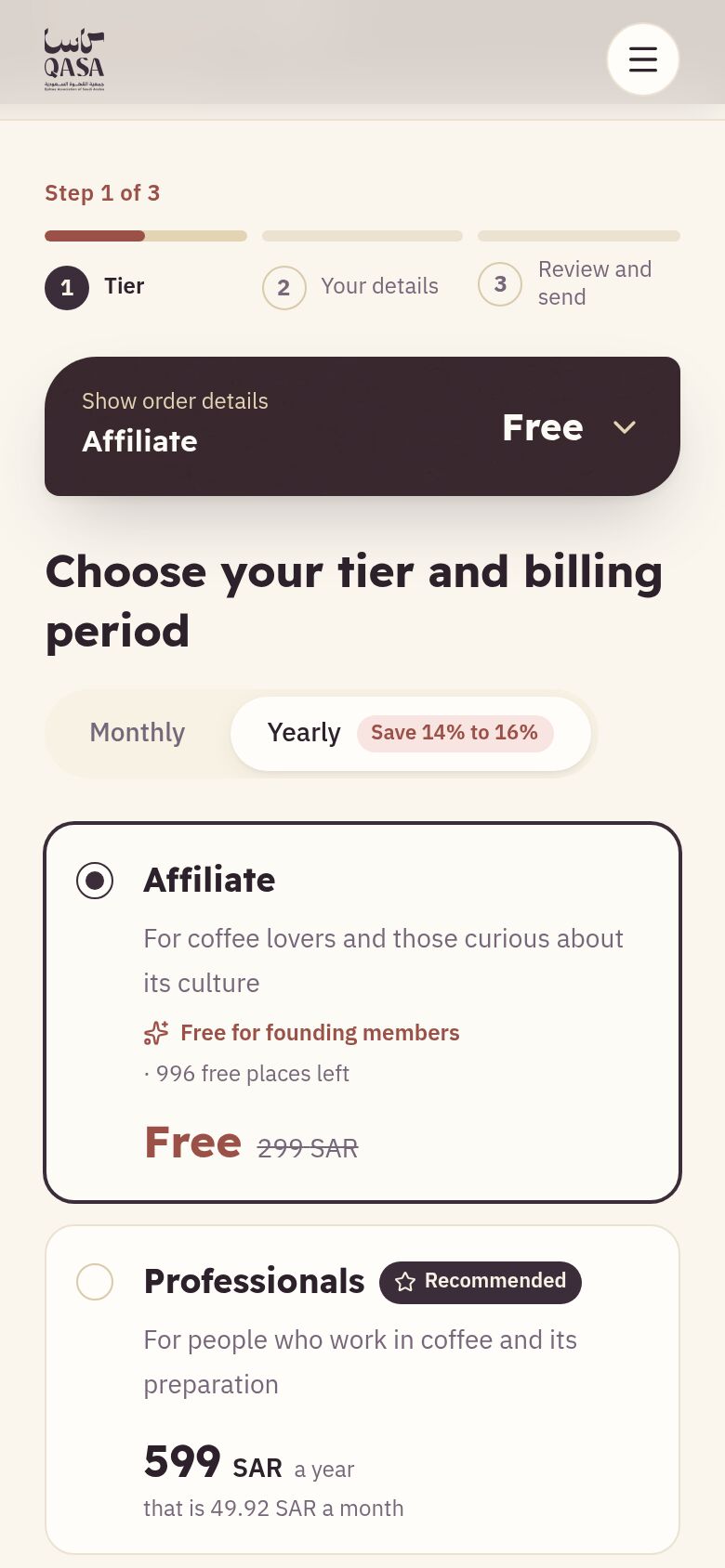
- At the top of the site, press “Join now”.
- Choose the membership tier and the period (“Monthly” or “Yearly”). If the tier is for establishments, write the establishment’s name, and its commercial registration number if you wish; the card is issued in its name.
- Under “What this tier asks for”, answer its questions and upload each document it asks for with “Choose a file” (a PDF, or a JPG or PNG picture, up to five megabytes), then press “Next”.
- Write your full name, your email and your mobile number, then press “Send the verification code”, type the code that reaches your email within ten minutes and press “Verify”.
- The national ID or iqama number is optional: it prevents duplicate accounts, and only its last four digits are shown. Then choose a password of at least twelve characters and press “Next”.
- On the “Review and send” step, check your details and, under the consents, tick “I have read the Terms and conditions and the Privacy policy and I accept them”. Agreeing to messages about offers and events is optional.
- Press “Send for review”. Nothing is charged now.
Up close— The parts the steps talk about, enlarged.
-
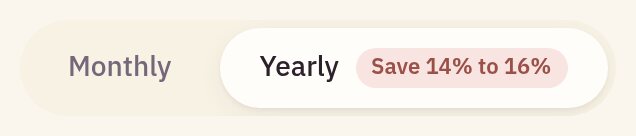
Choosing the period: monthly or yearly
-
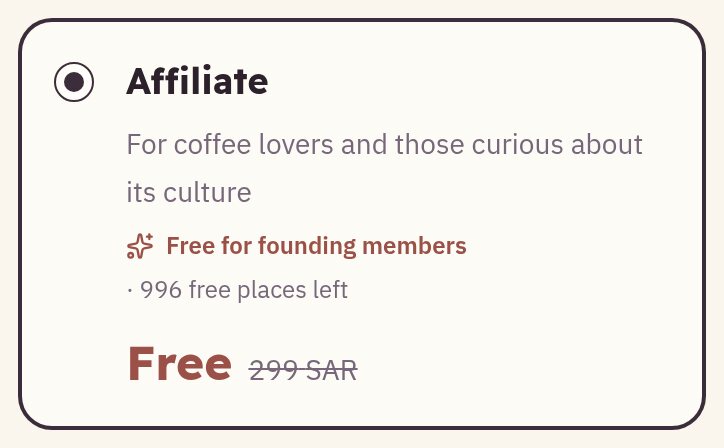
The chosen tier card
 23
Chapter 2
Review first, then payment — following your application
The association reviews your application first; if it is approved you get a payment link, and your card is issued the moment you pay.
- Follow your application at any time from “My application” at the bottom of the site: it is “Submitted”, then “Under review”.
- If it becomes “Needs completion”, press “Complete your application”, change what the association asked for, then “Send it again”.
- Once approved it becomes “Approved — awaiting payment”, and the payment link arrives by email and appears on your application page and on “My card”. Press “Pay now”, then “Pay by card”.
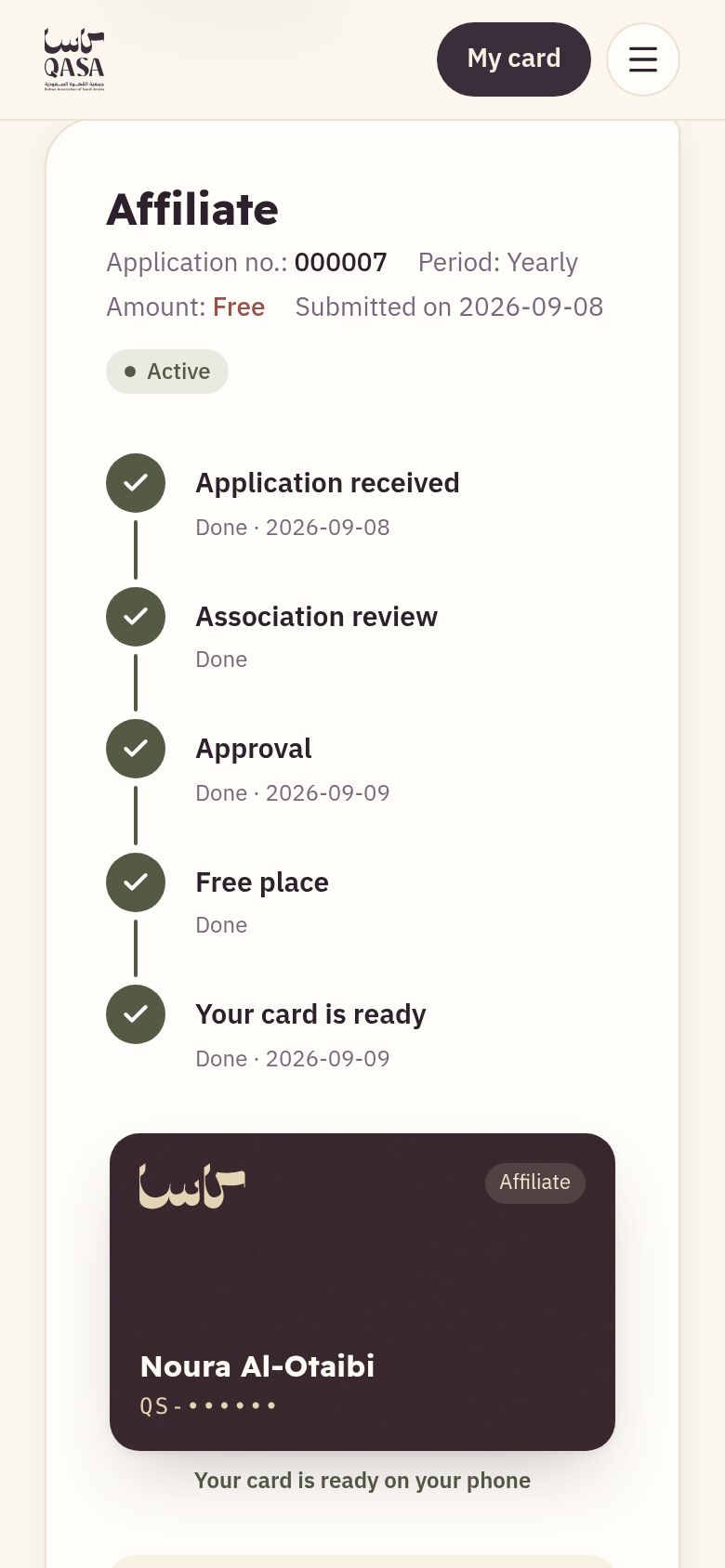
- Your card is issued the moment you pay and the application becomes “Active”. Pay before the deadline shown on the application page, or the application closes as “Payment window closed”.
- On a free place there is nothing to pay: the place is held when you send, and your card is issued on approval. You can “Withdraw the application” while it is open.
Up close— The parts the steps talk about, enlarged.
-
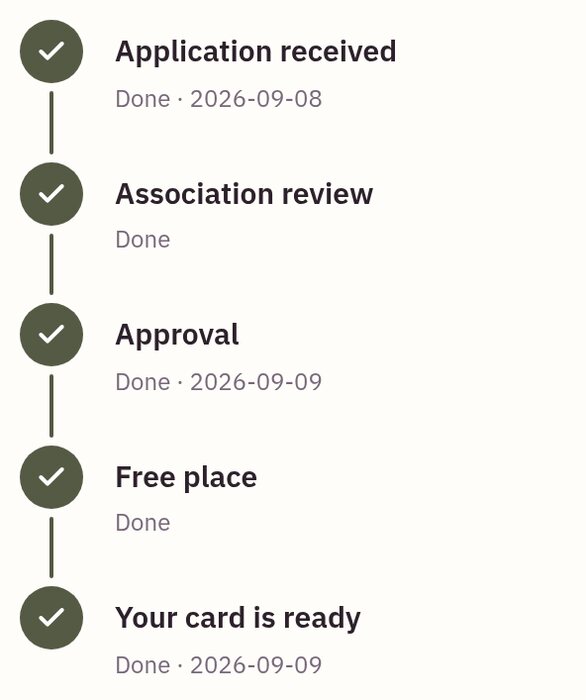
Your application’s track, step by step
 14
Chapter 3
Your digital card and its code
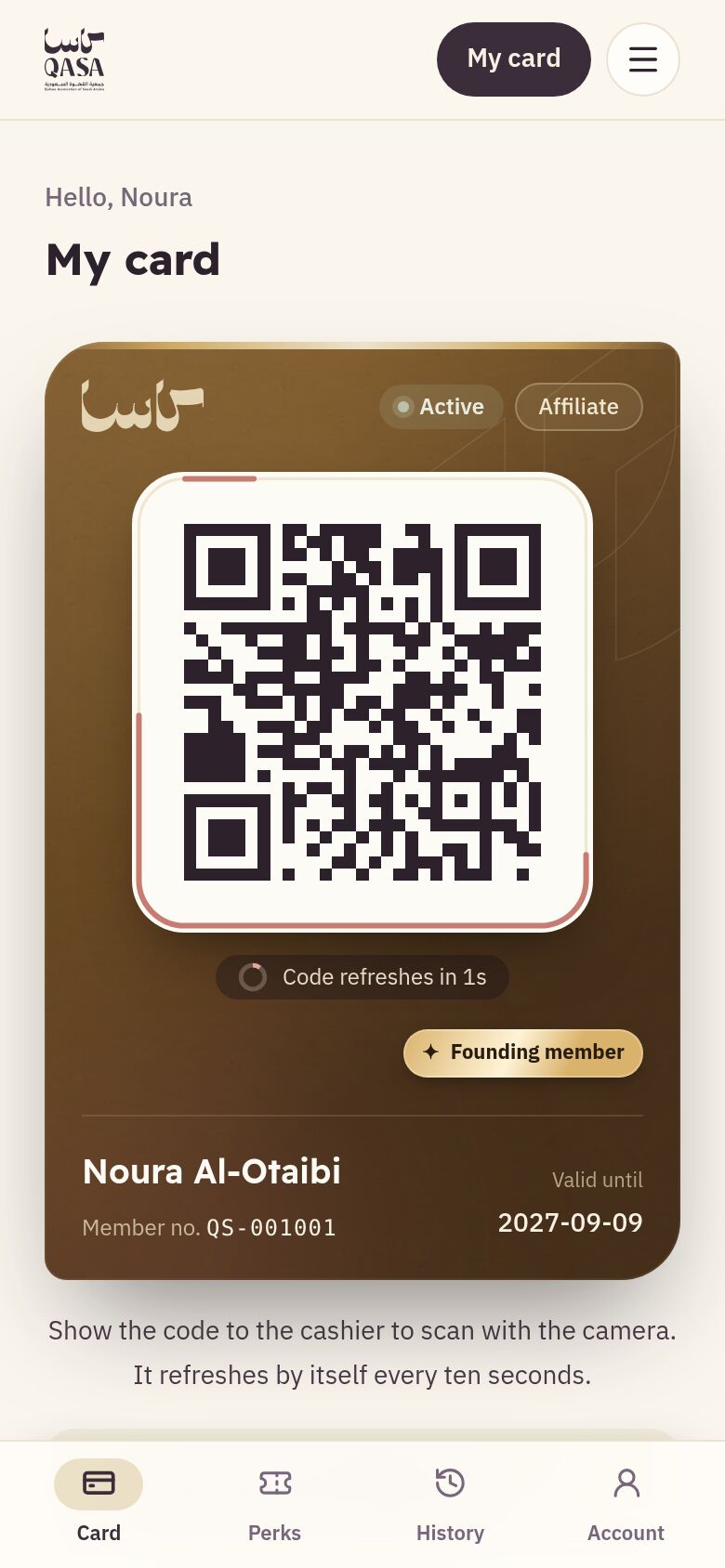
Your card on your phone proves your membership, with a code that renews itself every ten seconds, so a photo or copy of it is no use.
- Sign in and open “My card”, or press “Card” in the bar at the bottom of the phone screen.
- When you need to prove your membership, show the QR code to be scanned from the “Verify a membership” page. It renews every ten seconds.
- Turn up your screen's brightness so the code reads first time.
- To reach your card in one tap, choose “Add to Home Screen” from the browser menu (in Safari, from the Share button).
- On the same page, switch on “Hide my name on the verify page” if you do not want your name shown to someone checking your membership.
Up close— The parts the steps talk about, enlarged.
-
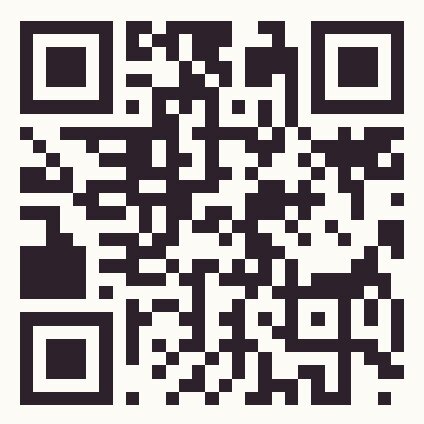
The renewing QR code that proves your membership
-
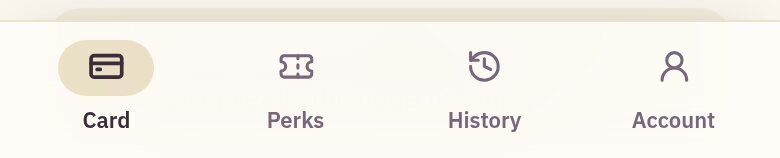
The section bar at the bottom of the screen
 12
Chapter 4
Your coupons: buying and collecting
Purchase coupons for establishments' products below the usual price: buy them in the store and collect your product at the branch.
- Open “Coupons” at the top of the site and choose one to see its usual price and your price, what it includes, and where and when it can be collected.
- Choose the quantity and buy. It is held for you for a quarter of an hour while you pay; once paid you get a message and find your coupons in “My coupons”.
- Each coupon has its number (like KC-7F3K-92QD), a six-digit pickup reference, a QR code, its last valid day and the branches to collect from, with directions.
- At the branch show the number, reference or code to the staff. When they ask for confirmation a six-digit code shows in “My coupons”: read it to them and the handover is recorded.
- Under “Past” you see used, expired, cancelled or refunded coupons with the reason. In “My card” you see what you saved this month and since you joined.
Chapter 5
Renewing your membership
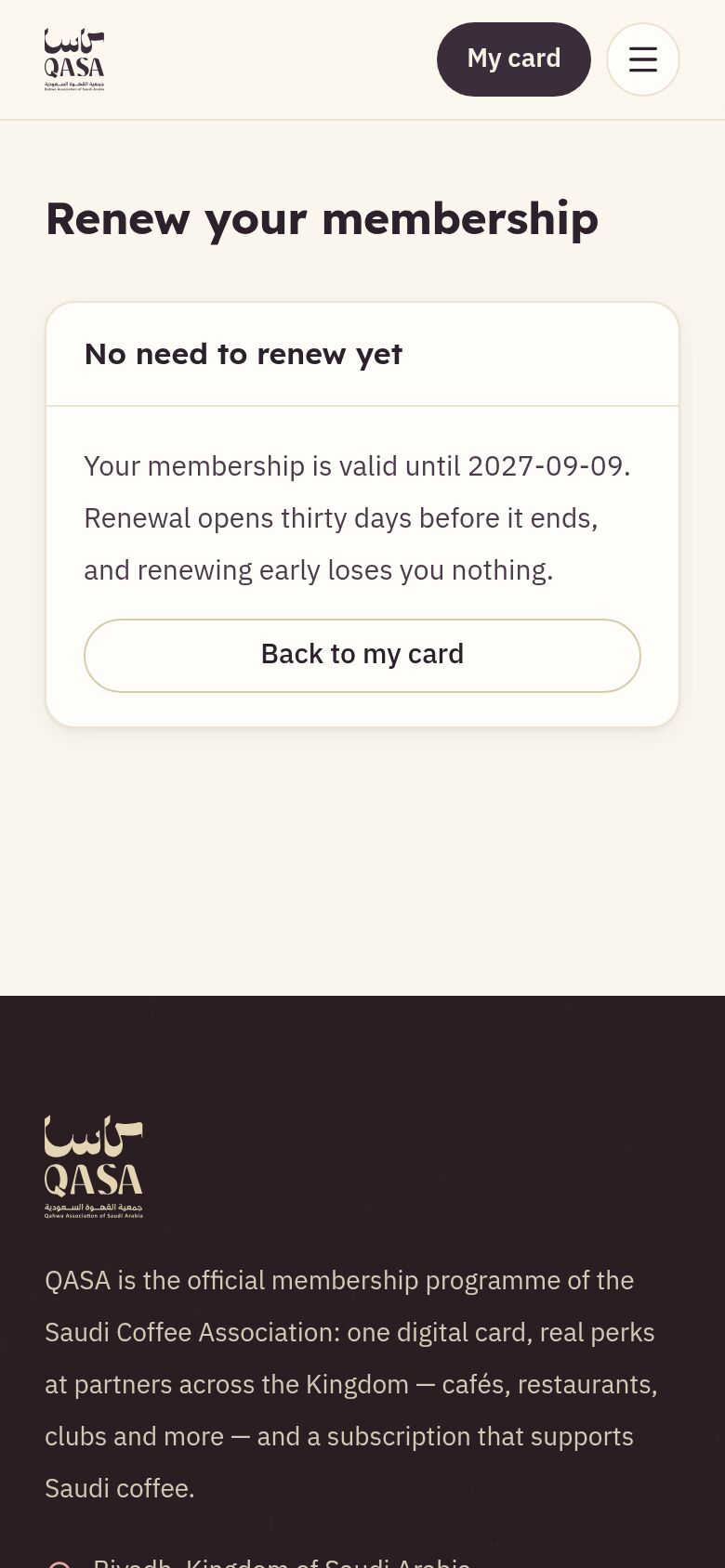
Renew your membership yourself in its last thirty days or after it ends, and your card keeps the same number.
- As the end approaches, “Renew your membership” appears on “My card”, and you receive reminders two weeks and three days before it ends.
- Choose the tier and the period; the amount is shown before you pay.
- Press “Continue to payment” and pay by card.
- Your membership is extended the moment the payment is confirmed, without review, and the new term starts when the current one ends, so you lose no day.
Up close— The parts the steps talk about, enlarged.
-
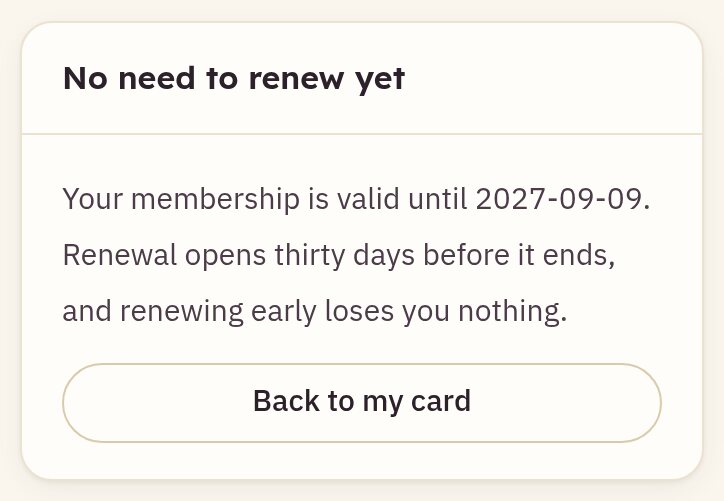
The renewal state on your page
 1
Chapter 6
Your account and its safety
In “My account” you change your password, turn on two-step verification and see the devices signed in to your account.
- Sign in with your email or mobile number and your password. Choose “Remember me on this device” on your own device only.
- Forgot your password? Press “Forgot your password?” on the sign-in page, then “Send the link”; you receive a link valid for one day.
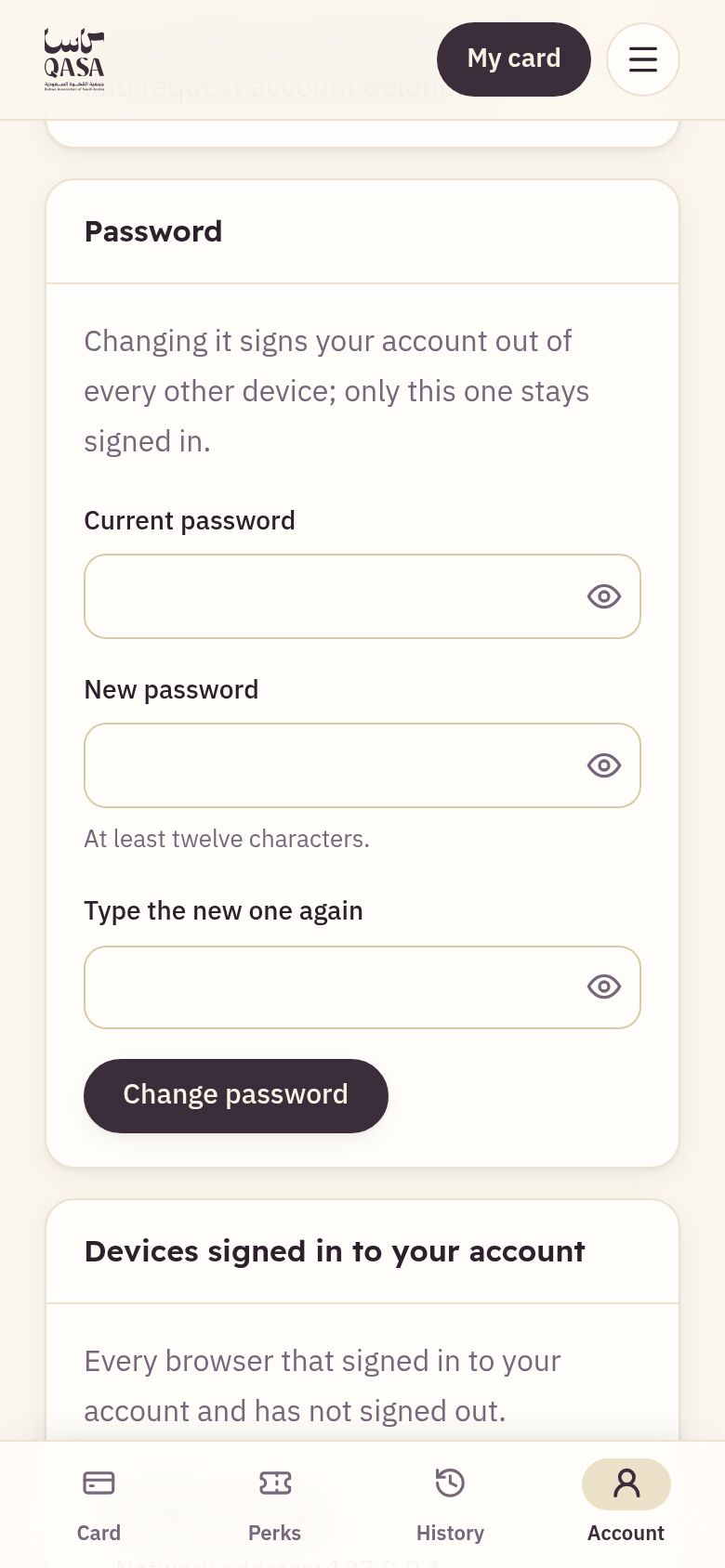
- To change your password, open “My account”, write the current one and then the new one, and press “Change password”. Your account is signed out of every other device.
- For stronger protection, press “Turn on two-step verification”, scan the code with an authenticator app on your phone, then type the code and press “Confirm and turn on”.
- Keep the backup codes somewhere safe, then press “I have saved them”. Each one lets you in once if you lose your phone.
- Under “Devices signed in to your account”, press “Sign out all other devices” if you see a device you do not recognise.
Up close— The parts the steps talk about, enlarged.
-
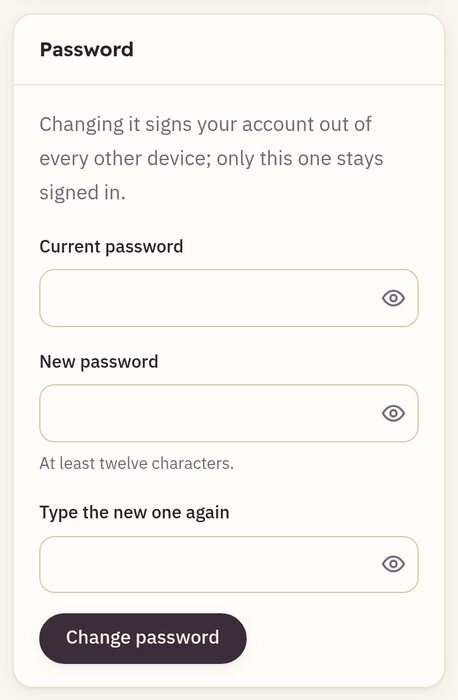
The “Password” card
 34
Chapter 7
Notifications and messages
Qasa sends you a message at every important step: your application received, your payment, the approval and the expiry reminders.
- Messages go to your email if you have one, in your language.
- A copy of every message is under “My notifications” on the “My card” page.
- If you joined with a mobile number only, “My notifications” is where your messages are.
Chapter 8
Privacy and my data
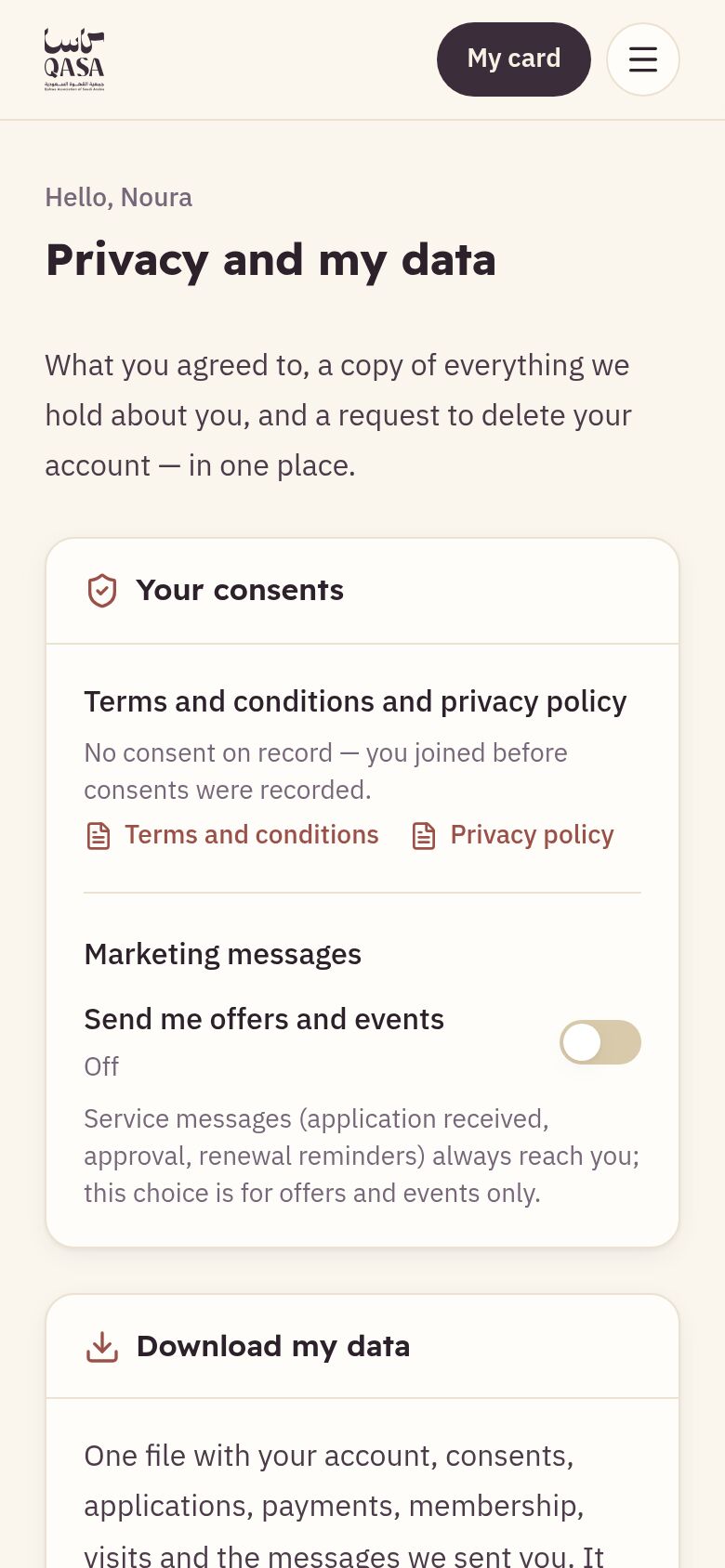
Your data is yours: see what you agreed to, change your consent to marketing messages, download your data, or ask for your account to be deleted.
- Open “My account”, then “Privacy and my data”.
- Under “Your consents” you see your consent to the terms and conditions and the privacy policy, with its date and version.
- Switch “Send me offers and events” on or off whenever you like. Service messages, such as approval and renewal reminders, always reach you.
- Press “Download my data” to receive one file with your account, consents, applications, payments, membership and messages.
- To delete your account, press “Request account deletion”, then “Send the request”. The association answers within thirty days, and you can “Withdraw the request” while it is waiting.
- Once approved, your personal data (name, email, mobile, password and what you wrote in your applications) is erased and your card stops. What the law requires to be kept, such as payments and the audit log, stays without anything that names you.
Up close— The parts the steps talk about, enlarged.
-
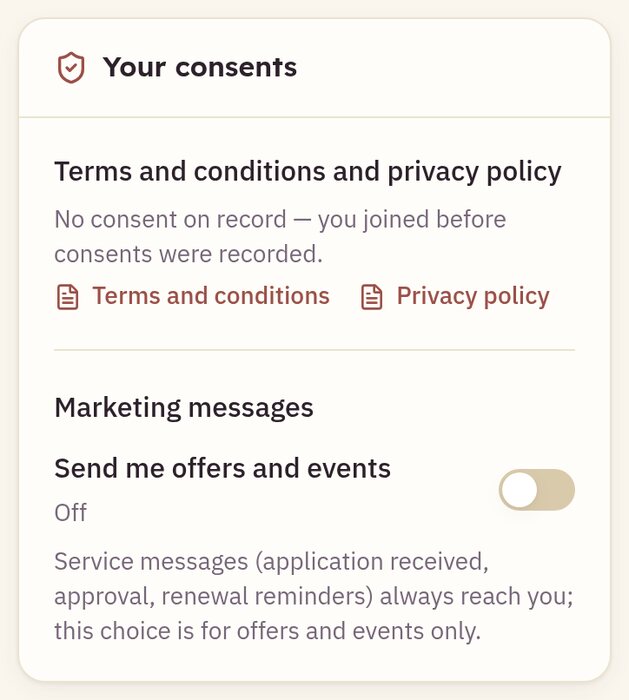
Your consents and the marketing switch
-
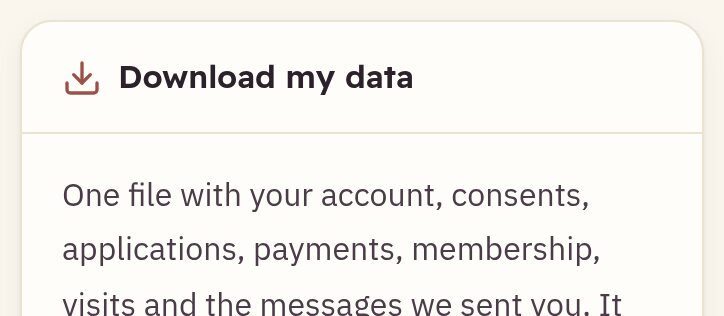
The “Download my data” button
 23